

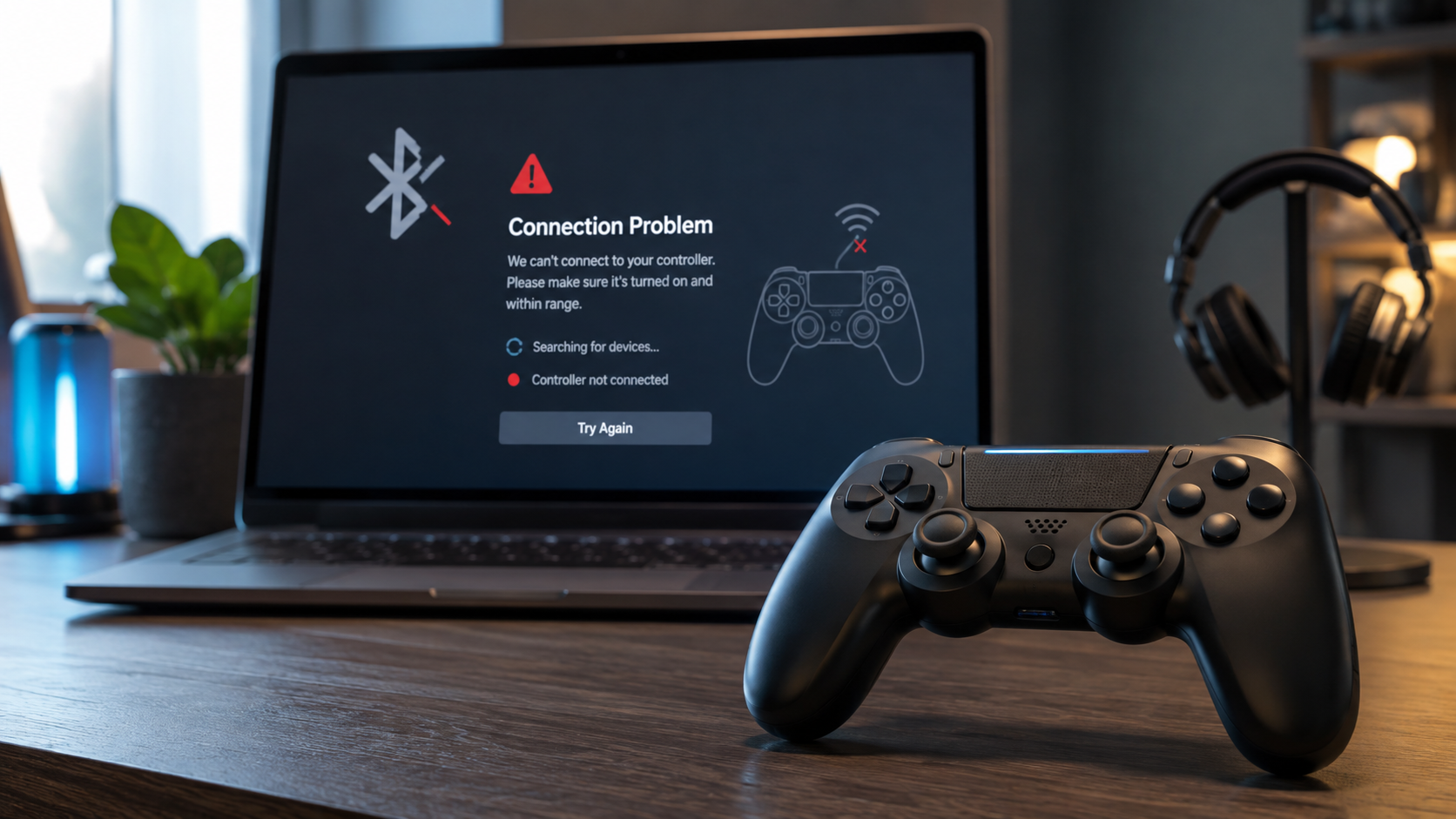
A controller that refuses to pair—or connects successfully and then drops out five minutes later—can be surprisingly difficult to diagnose. Searches for connectivity issues HSSGamePad usually point to one of several problems: Bluetooth pairing fails, a USB connection isn’t detected, the controller repeatedly disconnects, or the operating system sees the gamepad but the game ignores it.
There is one complication worth addressing immediately. Publicly available information about the name “HSSGamePad” is inconsistent. Different third-party sites describe it as a specific multi-platform controller, a controller connection system, or even a setup concept for “HSS games.” I could not verify a definitive manufacturer specification or model manual from the sources reviewed.
For that reason, the safest approach is to troubleshoot the actual connection method and device behavior rather than assume undocumented HSSGamePad features.
What Connectivity Issues HSSGamePad Users Are Actually Trying to Fix
A gamepad connection has several stages. The controller must power on, become discoverable or establish a wired link, be recognized by the operating system, and finally be accepted by the game or application.
Knowing which stage is failing saves a lot of unnecessary troubleshooting.
For example:
- The controller never appears in Bluetooth settings: focus on pairing mode, power, Bluetooth settings, and wireless compatibility.
- It appears but won’t pair: remove old pairings, restart both devices, and attempt a fresh connection.
- It pairs but disconnects: investigate battery condition, distance, interference, drivers, and competing connections.
- The operating system sees it but the game doesn’t: the physical connection is probably working; check game compatibility, controller profiles, or input settings.
- A wired controller doesn’t appear at all: test the USB cable and port before changing software settings.
This distinction matters because “connected but not working in a game” is not necessarily a connectivity failure.
Start With This Troubleshooting Sequence
Before changing drivers, installing utilities, or resetting anything, use the simplest tests first.
1. Confirm the controller has power
Charge the controller fully or install fresh batteries if it uses replaceable ones. Microsoft specifically recommends checking that a Bluetooth accessory is powered, charged, and within range when diagnosing Bluetooth failures in Windows.
A controller can sometimes turn on with limited remaining power yet behave unreliably once its wireless radio is active, so testing with a proper charge removes one variable.
2. Restart the controller and host device
Turn the controller completely off. Restart the PC, phone, tablet, TV, or other host device, then turn the controller on again.
A restart clears temporary Bluetooth and USB states and is less disruptive than immediately reinstalling drivers or resetting the operating system.
3. Disconnect the controller from other devices
If you previously paired the gamepad with another phone, laptop, tablet, or television, temporarily disable Bluetooth on that device.
Some controllers can remember multiple hosts and reconnect to previously paired devices. Apple specifically advises checking the controller manufacturer’s documentation because some gamepads can switch between multiple paired devices.
If your controller keeps vanishing during pairing, another saved device may be claiming the connection first.
4. Remove the saved pairing and start again
On Windows, Microsoft recommends removing a problematic Bluetooth device and adding it again. Android similarly allows you to open a saved Bluetooth accessory and choose Forget before re-pairing it.
After forgetting the gamepad, put the controller back into its documented pairing mode and search for it again.
Do not rely on a button combination found in a random HSSGamePad article. Pairing shortcuts can differ between controller revisions, so use the label, packaging, quick-start card, or documentation supplied with your actual unit.
Fixing HSSGamePad Bluetooth Pairing Problems
Bluetooth trouble usually falls into two categories: the gamepad is not discoverable, or it is visible but cannot establish a stable connection.
When the controller doesn’t appear
First confirm Bluetooth is enabled on the host.
In Windows 11, Bluetooth can be checked under Settings > Bluetooth & devices. Microsoft also recommends confirming that the accessory is powered and in range. If Windows still doesn’t show an expected accessory, its Bluetooth discovery setting can be changed to Advanced to display additional device types.
On Android, the normal process is to open Connected devices, choose the Bluetooth controls, and select Pair new device while the accessory is discoverable. Exact menu wording varies somewhat between manufacturers.
For Apple devices, the controller must first be placed in its own pairing mode. You then select it from Bluetooth settings. Apple explicitly tells users to consult the controller’s documentation for its particular pairing procedure.
If the HSSGamePad name never appears, don’t repeatedly tap Bluetooth on and off for twenty minutes. Test the controller with a second compatible device. If two different hosts cannot discover it, the problem is increasingly likely to be on the controller side.
What to Do When the Gamepad Keeps Disconnecting
An intermittent connection requires a different test than a controller that never pairs.
Start close to the host device. Remove unnecessary wireless accessories temporarily and play for several minutes. If the connection becomes stable, gradually restore your normal setup.
Wireless interference is a legitimate troubleshooting factor, not just a generic suggestion. Apple notes that reducing the number of Bluetooth devices can help with wireless controller connection issues. Microsoft also warns that some unshielded USB devices connected to USB 3.0 ports can interfere with nearby Bluetooth connections.
You don’t need to dismantle your gaming setup. Try controlled changes:
- Move the controller closer.
- Disconnect Bluetooth accessories you aren’t using.
- Move USB hubs, adapters, and wireless receivers away from the Bluetooth antenna where practical.
- Re-pair the controller.
- Test again.
Change one thing at a time. Otherwise, you may solve the problem without learning what caused it.
HSSGamePad Connected but Not Working in a Game
This is one of the easiest problems to misdiagnose.
If Windows, Android, macOS, or another operating system reports that the gamepad is connected, but pressing buttons does nothing inside one particular game, the wireless link itself may be fine.
Test another game or a system-level controller screen first.
On Windows, different software can handle controller input through different input technologies. Microsoft’s XInput API, for example, exists specifically to allow applications to receive controller input, while Microsoft’s broader GameInput system supports several legacy and current input technologies.
The practical implication is simple: a controller being recognized by Windows does not guarantee that every PC game will interpret its input correctly.
Steam’s own controller troubleshooting material also notes that gamepad-style input won’t work in software that doesn’t support gamepad input and that conflicting input software can sometimes cause controller problems.
If your HSSGamePad works in menus or another game, check the affected game’s controller settings before resetting the hardware.
Fixing a Wired USB HSSGamePad That Isn’t Detected
A wired test is especially useful because it separates wireless problems from broader controller problems—assuming your particular controller supports USB data.
Try a different cable
USB connector shape alone doesn’t prove that a cable carries controller data.
Some cables are intended primarily for charging, while a wired controller connection requires data capability. Apple makes the same distinction in its game-controller guidance, noting that direct USB pairing works for some controllers when the cable supports both data and charging.
Try a cable you know successfully transfers data with another device.
Try another USB port
Connect directly to the computer rather than through a hub for the first test. If the controller appears on one port but not another, you have narrowed the problem considerably.
Also inspect the connector. A loose port, damaged plug, debris, or a cable that only works when bent at a certain angle points toward a physical problem rather than a driver issue.
Test on another device
This is one of the most useful diagnostic steps available.
If the same controller and cable fail on two compatible computers, replacing drivers on the first computer is unlikely to solve the underlying problem.
If the controller works immediately on the second machine, return your attention to the original computer’s USB configuration, drivers, operating system, or software.
Windows-Specific Checks
Windows users have several additional troubleshooting options.
Microsoft’s current Bluetooth guidance recommends using the built-in Bluetooth troubleshooter, checking for updated Bluetooth-adapter drivers, and—when appropriate—removing and reinstalling the Bluetooth adapter through Device Manager.
Use that deeper troubleshooting only after basic pairing tests fail.
If Bluetooth disappears completely from Windows rather than failing only for the gamepad, that points more strongly toward the computer’s Bluetooth adapter or driver than toward the controller.
Likewise, if several unrelated Bluetooth accessories begin disconnecting at the same time, troubleshoot the PC’s Bluetooth system first.
Android, iPhone, iPad, and Mac Checks
On Android, forgetting the saved device and creating a fresh pairing is a sensible first step. Google also recommends confirming that the accessory is discoverable when it cannot be paired.
On Apple devices, compatibility deserves extra attention. Apple’s instructions are specifically for compatible game controllers and advise following the gamepad manufacturer’s documentation for discovery mode. Apple devices can support Bluetooth game controllers and, in some cases, wired controllers, but support depends on the controller and device involved.
Therefore, an HSSGamePad appearing in Bluetooth settings does not by itself prove complete game or platform compatibility.
How to Reduce Controller Lag
Not every delayed response is a connectivity issue.
Input may feel slow because of the game, display processing, cloud gaming, frame-rate problems, controller configuration, or the wireless link itself.
A simple comparison helps.
If supported by your controller, compare the same game using a wired connection and Bluetooth. If the problem disappears only when wired, investigate the wireless environment. If the delay remains almost identical, the controller’s Bluetooth connection probably isn’t the only factor.
Also distinguish consistent delay from random pauses. A stable but slightly delayed response suggests a different problem than inputs that freeze for a second and suddenly resume.
Common Troubleshooting Mistakes
The biggest mistake is changing too many things simultaneously.
Avoid installing unofficial “HSSGamePad drivers” simply because a third-party article links to them. I could not verify an authoritative manufacturer driver source for the HSSGamePad name during research for this article.
Also avoid assuming every HSSGamePad has Bluetooth, a 2.4 GHz receiver, USB-C data support, XInput mode, firmware updates, programmable buttons, or a particular reset combination. Those features are claimed by various online articles, but the public sources reviewed do not establish one definitive model specification.
Treat the hardware in your hands—its model number, supplied accessories, labels, manual, and packaging—as the source of truth.
When the Controller May Have a Hardware Problem
Hardware becomes a stronger possibility when several independent tests produce the same failure.
Examples include:
- The controller won’t power on after known-good charging.
- Multiple devices cannot discover it in pairing mode.
- Multiple known-good data cables and USB ports fail.
- The USB connector cuts in and out when moved.
- The controller disconnects on several unrelated host devices.
- A second controller works correctly on the same PC or phone.
None of these tests proves the exact failed component, but they help separate controller-side problems from computer, phone, or software issues.
FAQs
What causes connectivity issues HSSGamePad users encounter?
The cause depends on where the connection fails. Common areas to check include controller power, pairing mode, old Bluetooth pairings, host Bluetooth problems, wireless interference, USB cables, platform compatibility, and game-level input configuration. Because HSSGamePad documentation is not clearly standardized in public sources, troubleshoot the actual symptoms rather than assuming a particular HSS model or connection mode.
Why does my HSSGamePad show as connected but not work?
If the operating system shows the controller as connected, test whether buttons register outside the affected game. If they do, the connection itself is probably functioning. The game may lack controller support, use a different input configuration, or have a software conflict. Steam’s controller documentation confirms that gamepad input depends on the game supporting that input style.
Should I forget the controller and pair it again?
Yes, it is a reasonable early troubleshooting step for Bluetooth problems. Microsoft recommends removing and re-adding problematic Bluetooth devices in Windows, while Android provides a Forget option for saved accessories. After removing the saved pairing, return the controller to its documented discovery mode and create a fresh connection.
Can other wireless devices make a controller disconnect?
They can contribute to wireless problems in some environments. Apple recommends reducing connected Bluetooth devices when troubleshooting controller connections, while Microsoft notes that certain unshielded USB devices near USB 3.0 ports can interfere with Bluetooth. Testing close to the host with unnecessary wireless accessories disconnected can help identify interference.
Why won’t my gamepad work through USB?
Start with the cable. A cable with the correct USB connectors may still be unsuitable for a data connection. Try a known-good data cable and connect directly to another USB port rather than a hub. If possible, test the controller and cable on a second compatible computer to determine whether the problem follows the controller or remains with the original machine.
Do I need special HSSGamePad drivers?
Do not install a driver merely because an unofficial troubleshooting page says one is required. I could not verify a definitive manufacturer driver download for the HSSGamePad name. On Windows, update the computer’s Bluetooth drivers through Windows or the PC/Bluetooth-adapter manufacturer when Bluetooth itself is malfunctioning. Microsoft recommends those sources for current Bluetooth drivers.
How do I know if the HSSGamePad itself is faulty?
Cross-testing is the best starting point. Try the controller on another compatible device and, for wired operation, use another known-good data cable. If multiple independent devices cannot detect the controller while other controllers work normally on those devices, a controller-side fault becomes considerably more plausible.
Conclusion
The most reliable way to solve connectivity issues HSSGamePad searches describe is to stop treating every symptom as the same problem. First determine whether the failure occurs at power-up, Bluetooth discovery, pairing, USB detection, operating-system recognition, or inside the game itself.
Begin with power, restart both devices, remove old pairings, test at close range, and use a known-good data cable for wired troubleshooting. Then move to platform-specific driver or compatibility checks only if those basic tests fail.
Most importantly, be cautious with highly specific HSSGamePad instructions published without an identifiable model or manufacturer reference. The exact hardware specification remains insufficiently verified in public sources, so the manual and model information supplied with your particular controller should take priority over generic online claims.
Read also How Much Mogothrow77 Software Is Open Source? Verified Facts
